Documentation / Payments
CCBill Payment Gateway for WooCommerce Subscriptions
Install, configure, and verify the gateway end-to-end. Written for the current Plugin District build.
Before you start
CCBill must enable a Dynamic Pricing Form on your account before this gateway will accept payments. If you don't have one, request it from CCBill: [email protected] or 1-800-510-2859.
Contents
- Requirements
- Install the plugin
- Configure the gateway in WooCommerce
- Configure CCBill (approval URL + webhook)
- Run a test transaction
- Troubleshooting
- Support
1. Requirements
- WordPress 6.0+ and a working WooCommerce store.
- WooCommerce (latest stable).
- WooCommerce Subscriptions — get it here. Required even if you only sell one-time products, because the gateway integrates with the Subscriptions hooks.
- A CCBill merchant account with a Dynamic Pricing Form enabled (see callout above).
- HTTPS on your store URL — CCBill webhooks won't post to an insecure endpoint.
2. Install the plugin
- Log in to your WordPress admin.
- Go to Plugins → Add New → Upload Plugin.
- Choose the
plugindistrict-ccbill-payment-gateway-woocommerce-subscriptions.zipfile from your Plugin District download. - Click Install Now, then Activate.
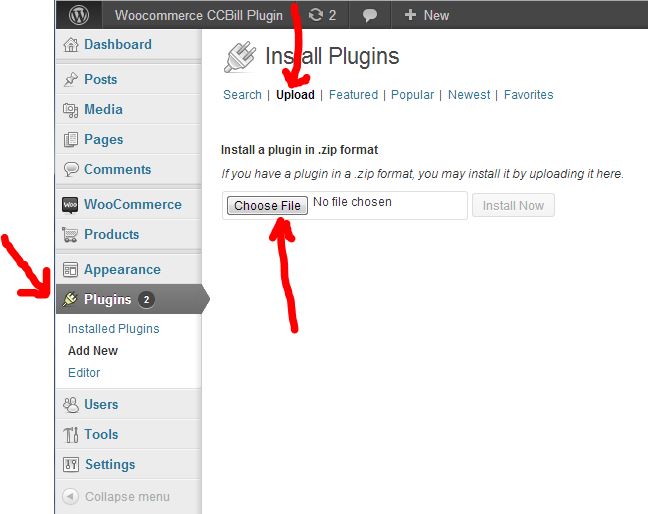
You can re-download the latest ZIP at any time from My Account → Downloads.
3. Configure the gateway in WooCommerce
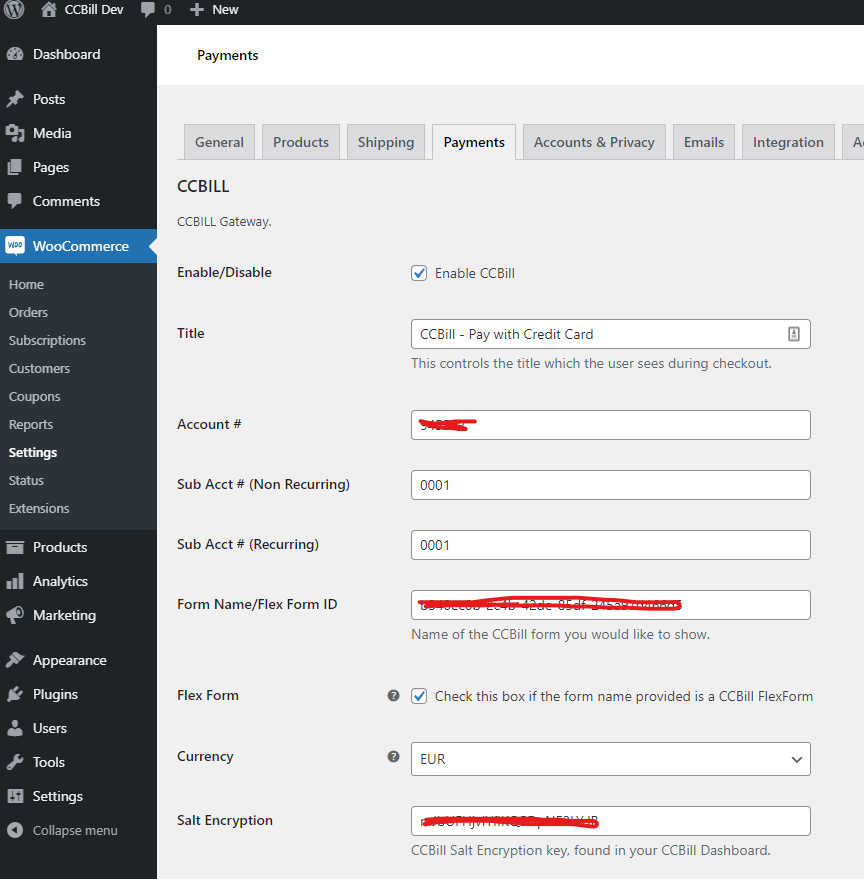
- Go to WooCommerce → Settings → Payments.
- Find CCBill in the list and toggle it on.
- Click Manage and fill in the fields from your CCBill subaccount:
- Account Number — your 6-digit CCBill client account.
- Subaccount Number — the subaccount you want charges routed to.
- Form Name — the dynamic pricing form ID assigned to you by CCBill.
- Salt / Encryption Key — copy from CCBill's Account Info → Sub Account Admin → Sub Account → MD5 Salt. This is what hashes the form payload; if it doesn't match, payments will be rejected.
- Currency Code — must match your WooCommerce store currency.
- Click Save Changes.
4. Configure CCBill
4a. Approval URL
This is where CCBill returns the customer after a successful charge.
- Log in to your CCBill admin.
- Go to Account Info → Sub Account Admin → Basic.
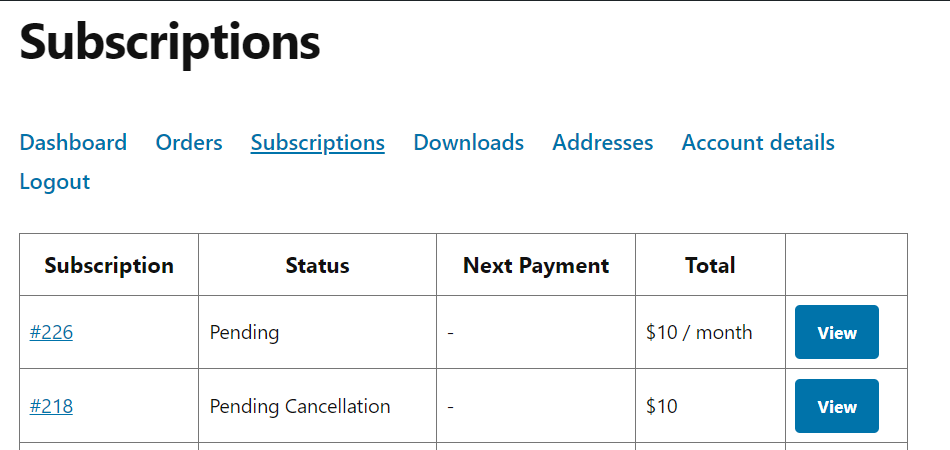
- Set the Approval URL to your subscriptions page so customers land on their new subscription:
https://YOURSITE.com/my-account/subscriptions/ - Click Update at the bottom of the page.

4b. Advanced post URLs
Now click Advanced on the left. Both the Approval Post URL and Denial Post URL should be left empty. Order status is delivered through webhooks (next step), not legacy post-backs — leaving these set will cause duplicate notifications.
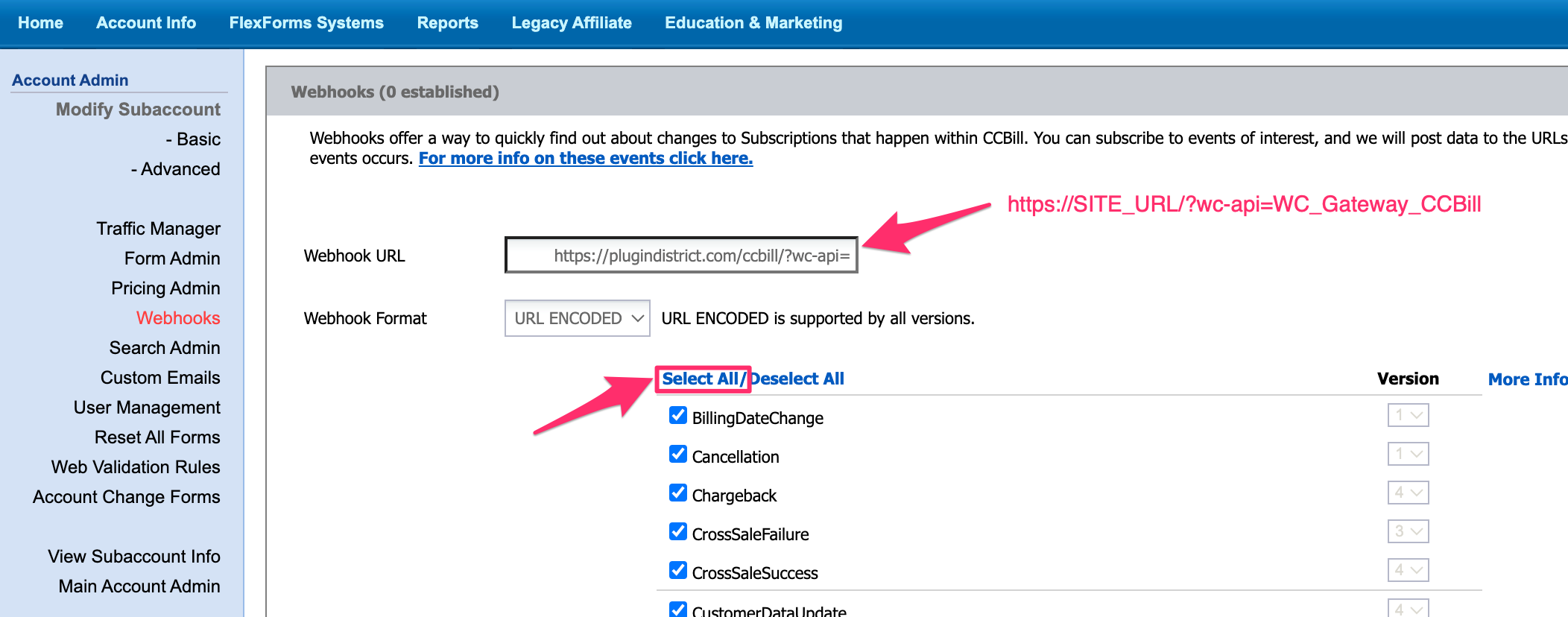
4c. Webhook
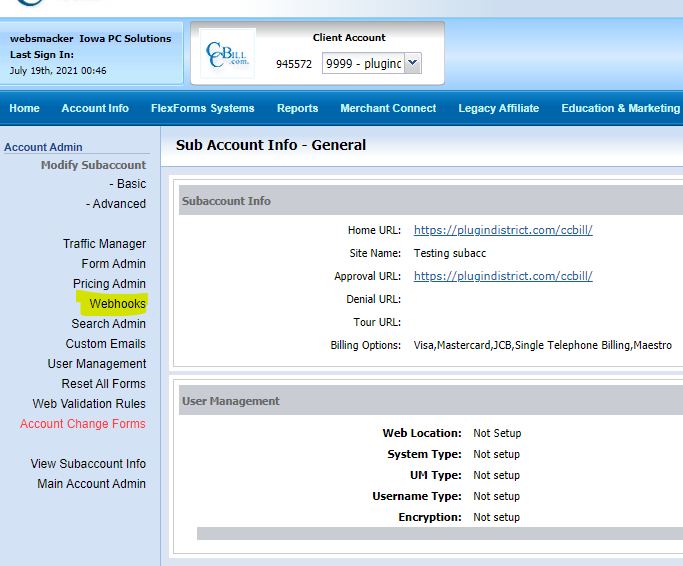
- Go to Account Info → Sub Account Admin → Subaccount → Webhooks.
- Click Add.
- Set Webhook URL to:
https://YOURSITE.com/?wc-api=WC_Gateway_CCBill&webhook=1
(ReplaceYOURSITE.comwith your domain. The?wc-api=handler is registered by WooCommerce — no permalink changes needed.) - Select all events. Filtering at this layer will mean missing renewals, refunds, or chargebacks.
- Click Update at the bottom.
5. Run a test transaction
- Ask CCBill support to whitelist your IP for their test system, or use the test cards they provide for your account.
- Add a subscription product to the cart and check out.
- You should be redirected to the CCBill hosted payment form, complete the payment, and land on
/my-account/subscriptions/. - Within a minute, the order in WooCommerce should flip from Pending to Processing (or Active for the subscription) — that flip is the webhook arriving.
6. Troubleshooting
Orders stay in "Pending" after a successful payment
Almost always a webhook delivery issue. Check, in order:
- Webhook URL is exact, including
?wc-api=WC_Gateway_CCBill&webhook=1and HTTPS. - Your firewall / CDN is not blocking CCBill. If you use Cloudflare, Wordfence, Sucuri, or similar, whitelist these CCBill ranges:
64.38.240.0 – 64.38.240.25564.38.241.0 – 64.38.241.25564.38.212.0 – 64.38.212.25564.38.215.0 – 64.38.215.255
- WooCommerce logs. Check WooCommerce → Status → Logs for entries under
ccbill— failed signature verification means the Salt / Encryption Key in your gateway settings doesn't match the one in CCBill.
Customer is bounced back to checkout instead of subscriptions page
Your CCBill Approval URL is unset or wrong. Re-check step 4a.
"Invalid form" error from CCBill
The Form Name in your WooCommerce settings doesn't match a Dynamic Pricing Form on your CCBill subaccount. Confirm the exact form ID with CCBill support.
7. Support
Found a bug, got stuck, or want a feature? Contact us with your WooCommerce version, WooCommerce Subscriptions version, and the plugin version (Plugins → Installed Plugins). For CCBill-account questions (form approval, payouts, chargebacks), reach CCBill directly at [email protected] or 1-800-510-2859.
Need a hand?
We usually reply within one business day. Include your store URL and the plugin version so we can dig in fast.