How to Restore a WooCommerce Backup Without Losing Orders
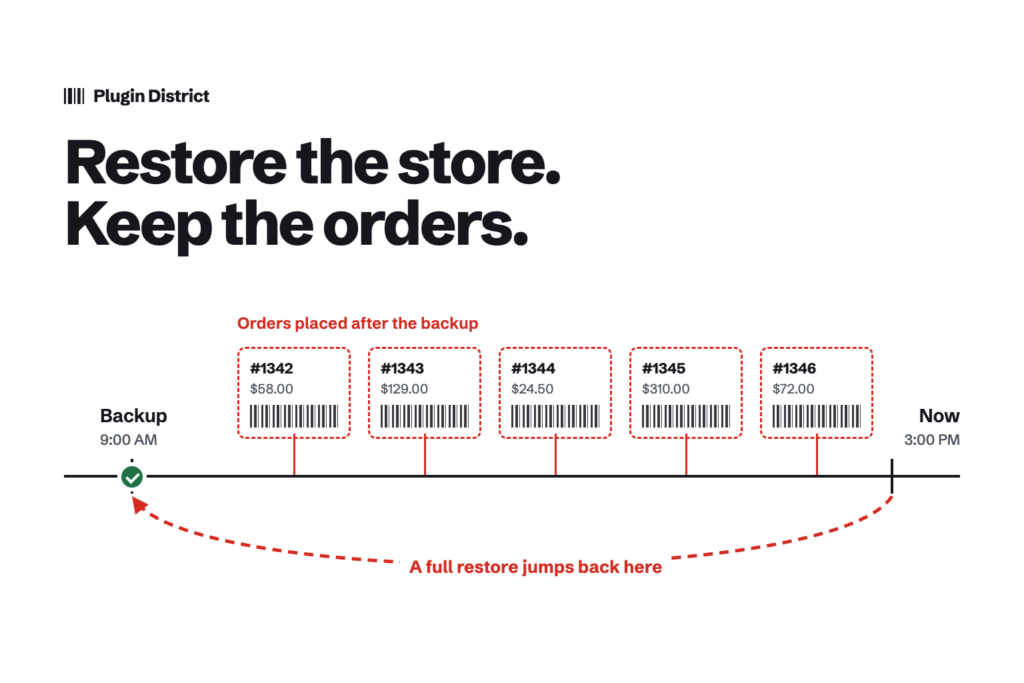
Restoring a WordPress blog from backup is easy: pick yesterday’s copy, click restore, done. Restoring a WooCommerce store is different, because the store kept working after that backup was taken. Customers placed orders, payments were captured, stock went down and subscriptions renewed. A full restore quietly erases all of it, while the money stays in your payment account.
This guide covers how to restore a WooCommerce backup without losing that data: what to do in the first ten minutes, how to choose between a files-only, database-only or full restore, how to rescue orders placed after the backup, and what to check before you reopen checkout.
Often you don’t need a full restore at all. If a settings change broke your shipping or tax, SnapSettings restores shipping zones, tax rates and WooCommerce options from one file, without touching orders, products or customers.
Why a WooCommerce restore is riskier than a normal WordPress restore
A WooCommerce database is a live ledger. Every order touches several tables at once. With High-Performance Order Storage (the default since WooCommerce 8.2), orders live in wp_wc_orders, wp_wc_orders_meta, wp_wc_order_addresses and wp_wc_order_operational_data, with line items in wp_woocommerce_order_items and wp_woocommerce_order_itemmeta. Stock levels sit in product meta, and customer records sit in wp_users and wp_wc_customer_lookup.
Restore a database backup from 9:00 a.m. at 3:00 p.m. and everything those tables recorded in between is gone:
- Orders placed in that window disappear, even though your payment gateway already took the money.
- Stock jumps back up, so you can oversell items that already shipped.
- New customer accounts vanish, and those customers can’t log in to download what they bought.
- Order numbers get reused. The database’s ID counter rewinds, so the next new order can take the ID of an order you lost, which makes reconciling with your payment processor confusing.
- Scheduled actions come back. Emails, renewals and other jobs that already ran after the backup are pending again in the restored copy (more on that below).
None of this means “never restore”. It means you choose the smallest restore that fixes the problem, and you save the post-backup data before you start.
Before you restore: the first ten minutes
- Stop new orders. Put the store in maintenance mode, or at least disable checkout, so nobody buys something you’re about to overwrite. Every order taken now is one more to rescue later.
- Back up the broken site. It sounds backwards, but this copy is the only place the orders since your last good backup still exist. With WP-CLI it’s one command:
wp db export broken-$(date +%F-%H%M).sql. Download a copy ofwp-contenttoo if you’re not sure the problem is in the database. - Write down the exact time of the backup you plan to restore. That timestamp defines the gap you have to account for.
- Pause cron if you can. Add
define( 'DISABLE_WP_CRON', true );towp-config.phpfor the duration, so scheduled actions in the restored database don’t fire before you’ve checked them.
Pick the smallest restore that fixes the problem
Most WooCommerce emergencies fall into one of three shapes. Match the symptom to the restore type, rather than reaching for “restore everything”.
| What went wrong | What to restore | Order data at risk? |
|---|---|---|
| A plugin or theme update broke the site | Files only (roll back that plugin or theme) | No |
| A settings change broke shipping, tax, payments or emails | Settings only | No |
| A bad import or bulk edit damaged products | Products only, or a database restore on staging to copy them from | No, if you avoid a full database restore |
| The database is corrupted, or the site was hacked | Full database (and usually files) | Yes: rescue the orders first |
Files only: rolling back a bad plugin or WooCommerce update
If the site broke right after an update, the database is usually fine and only the code changed. Roll back the one plugin instead of the whole site:
- With WP-CLI:
wp plugin install woocommerce --version=X.Y.Z --force, using the plugin’s slug and the last version that worked for you. - Without WP-CLI: the free WP Rollback plugin from WordPress.org can reinstall an earlier version of any plugin hosted there.
- For premium plugins, reinstall the previous version’s zip from your account with the vendor.
One caveat for WooCommerce itself. Major releases can run database updates, and the old code may not expect the new schema. Check WooCommerce → Status after a rollback, and test it on a staging copy before doing it on a busy store.
Settings only: the restore most people overdo
A wrong tax rate, a deleted shipping zone or a payment gateway that stopped showing up are configuration problems, not data problems. Restoring the whole database to fix them throws away every order since the backup in order to recover a few rows of settings.
WooCommerce settings are spread across wp_options, the tax-rate tables and the shipping-zone tables, which is why most backup plugins can’t restore settings on their own. If you exported your settings before the change, re-import that export and leave everything else alone. SnapSettings does exactly this: it imports shipping zones, tax rates and WooCommerce options from a CSV export, rolls the import back automatically if it fails, and shows a summary of what changed.
Products only: undoing a bad import
If a CSV import or bulk edit damaged your catalogue, restore the backup to a staging site, export the affected products from there with WooCommerce’s product exporter, and import them back into the live store. Live orders stay untouched. Expect to re-check variations and linked products (upsells and cross-sells) afterwards, since those links are stored by ID.
Full restore: when nothing smaller will do
Corruption, a hack or a failed migration can justify a full database restore. Do it in this order:
- Rescue the post-backup orders from the “broken” export (next section).
- Restore the database and, if needed, files from your last clean backup.
- Re-enter or re-import the rescued orders before reopening checkout, so new orders can’t take their IDs.
- Run the after-restore checklist below.
How to rescue orders placed after the backup
This is the step most guides skip. You have two sources of truth for the gap: the database export you took of the broken site, and your payment processor.
- Make the list first. In your payment dashboard (Stripe, PayPal or similar), filter payments from the backup timestamp until checkout was disabled. That gives you the authoritative list of orders that must exist after the restore.
- Get the details from the broken export. Load it into a scratch database or staging site and look up those orders under WooCommerce → Orders: customer, items, addresses and any order notes.
- Recreate them. For a handful, create them manually in the admin (Orders → Add order) with the original details and a note recording the original order number. For dozens, an order import/export plugin moves them across in bulk. Either way, compare totals against the payment list before calling it done.
- Fix stock. Depending on how the orders are recreated, stock may not be reduced automatically, so check the products involved and adjust their stock by hand.
- Tell affected customers if their order number changed or a download link needs re-sending. A short, honest email prevents chargebacks.
If you only took a few orders since the backup, doing this by hand takes minutes. If you take hundreds a day, that’s a sign you need more frequent or real-time database backups. Our WooCommerce backup guide covers how often to back up for your order volume.
After the restore: check these before reopening checkout
- Scheduled actions. Open Tools → Scheduled Actions and filter by Pending. Anything that already ran after the backup (renewal payments, follow-up emails, webhooks) is queued again. Cancel duplicates before re-enabling cron. This matters most for WooCommerce Subscriptions, where a re-run renewal can charge a customer twice.
- Payment gateway webhooks. Gateways like Stripe retry failed webhooks for a while. Check the gateway’s event log for anything that failed during the outage and confirm those orders now have the right status.
- Caches. Clear your page cache, any CDN cache and the object cache (
wp cache flush), or visitors may keep seeing pages from before the restore. - Settings that drifted. If the backup is older than your last configuration change, shipping rates, tax and gateway settings are now old too. Compare them against your latest settings export.
- A real test order. Place one order with a live payment method, refund it, and confirm the order emails arrive.
- Re-enable cron and checkout, and remove
DISABLE_WP_CRONfromwp-config.php.
Make the next restore boring
The stores that get through a restore without stress have three habits:
- Backups that match their order volume, with the restore practised on staging at least once. A backup you’ve never restored is only a hope.
- A settings export before every configuration change, so a bad change gets a small, targeted restore instead of a full one.
- Updates tested on a staging copy first. Our guide to cloning a WooCommerce store shows how to set one up without copying live orders around.
Take a settings snapshot before your next change. SnapSettings exports your WooCommerce configuration to a dated file you can restore in minutes, with automatic rollback if an import fails.
Want help applying this?
Tell us your workflow and we'll point you to the right plugin or next step.